


How do you add address autocomplete in Webflow?
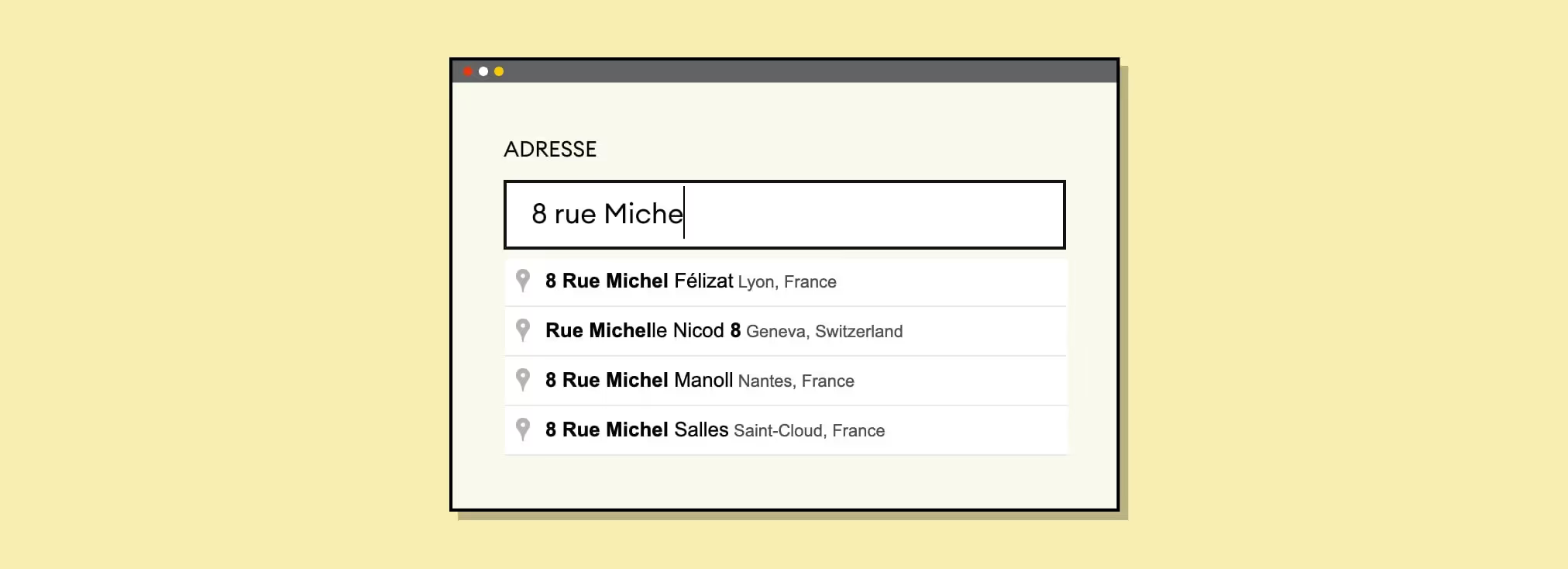
Why add an address field with autocomplete?
| Prerequisites | Details |
|---|---|
| Google Cloud Console account | Free to create |
| Places API enabled | In Google Cloud Console > APIs |
| API key | Restrict it to your domain for security |
| Webflow input ID | Add 'address-input' to your field |

Better user experience
- Ease of use: Autocomplete helps users find and enter their addresses faster and more easily.
- Fewer errors: It reduces the risk of mistakes by suggesting valid addresses.
Data accuracy
- Standardization: Entered addresses are often normalized into a standard format, which helps ensure data accuracy.
- Validation: It lets you validate addresses in real time, so the information you receive is accurate.
Efficiency
- Time savings: It cuts down the time users spend filling out forms, which is especially useful on mobile devices where typing can be a pain.
- Less friction: It minimizes the steps needed to complete a form, helping reduce cart abandonment and sign-up drop-off.
All of this helps boost form conversions and make your data more reliable.
Gemeos, the Webflow agency, shows you how to do it!
Tutorial: add a single-field address autocomplete in Webflow

1. Create a Google Cloud Console account and go to Google Maps Platform
Follow this link to get there!
You should see a modal with your API key (see the screenshot below).
Copy your API key so you have it handy — you'll need it for the next steps.

2. Add the "address-input" ID to your input in Webflow

3. Add this custom code to your page or in an embed inside your form
Make sure you add your API key in place of {API key} in the first and second code blocks below.
4. Publish and test the result
It doesn't get much simpler than that.
Good to know
Heading
Lorem ipsum dolor sit amet, consectetur adipiscing elit. Suspendisse varius enim in eros elementum tristique. Duis cursus, mi quis viverra ornare, eros dolor interdum nulla, ut commodo diam libero vitae erat. Aenean faucibus nibh et justo cursus id rutrum lorem imperdiet. Nunc ut sem vitae risus tristique posuere.










Lorem ipsum
Lorem ipsum dolor sit amet, consectetur adipiscing elit, sed do eiusmod tempor incididunt ut labore et dolore magna aliqua. Ut enim ad minim veniam, quis nostrud exercitation ullamco laboris nisi ut aliquip ex ea commodo consequat. Duis aute irure dolor in reprehenderit in voluptate velit esse cillum dolore eu fugiat nulla pariatur.





