


What is local seo in Webflow?

Local SEO masterclass in Webflow, in video!
| Local SEO step | Action | Webflow tool |
|---|---|---|
| 1. Local keywords | Identify [product/service] + [city] | GSC + manual research |
| 2. CMS architecture | City + Product + Local pages collections | Webflow CMS Collections |
| 3. Metadata | Dynamic title and meta description | CMS fields + Page Settings |
| 4. Schema markup | LocalBusiness JSON-LD in the head | Custom Code + CMS variables |
| 5. Customer reviews | Reviews CMS collection filtered by city | CMS Collections + filters |
In this tutorial, Sandro — co-founder of the Webflow SEO agency Gemeos — shows you how and why to do local SEO in Webflow.
First things first: why do local SEO?
Local SEO boosts visibility for local searches, brings in local customers, helps you stand out in a smaller competitive field, and strengthens your presence on Google Maps.
It’s essential for local businesses that want to stand out in their region. It also pairs really well with a broader SEO strategy.
Picture a bakery in Bordeaux: with local SEO, when someone searches for “best baguette Bordeaux,” that bakery can show up at the top.
The problem?
You don’t always know where to start, which steps to follow, or how to optimize all of this in Webflow — especially on the CMS side.
Don’t worry, I’ll walk you through it step by step.
For me, local SEO breaks down into 4 steps:
#Step 1 : Identify keywords that fit your business and your area.
For example, “plumber in Paris” or “Italian restaurant in Lyon”
#Step 2 : Optimize your website (content, CMS architecture, metadata, schema markup)
#Step 3 : Collect and display local customer reviews
Encourage happy customers to leave reviews on Google, Yelp, and other relevant platforms. Positive reviews can make a big difference to your local visibility.
#Step 4 : Build local backlinks
Partner with other local businesses, blogs, or news sites to earn relevant links (backlinks).
These 4 steps are the foundation of an effective local SEO strategy.
Of course, SEO success takes ongoing attention and a steady rhythm of writing and updating your content.
We’re going to focus especially on steps 2 and 3 together! ✌🏼
Optimizing your website (dedicated pages, local content…)
Depending on your needs, the solution will be different.
Case 1 (single product)

If you have one product or service that you want to rank for locally.
Business examples : Barber, Hairdresser, Restaurant
Keyword examples: Barber + City, Hairdresser + City, Pizza place + City
1. CMS architecture
Let’s take the example of a CACES training center specializing in forklift training (r489), with centers all over France.
Goal : Rank for the keywords “CACES R489 training + {City}” in every city where it operates
How do you do this in Webflow?
You could create one page and duplicate it for each city, but that’s way too time-consuming. And if you want to make changes, you’d have to go back through every page manually.
To make things easier and avoid creating X pages for the X cities you want to rank in, you’ll need to create several CMS collections:
- City CMS Collection (collection URL = caces-r489)
- Local customer reviews CMS Collection (I’ll show you how to add them later ⬇️)
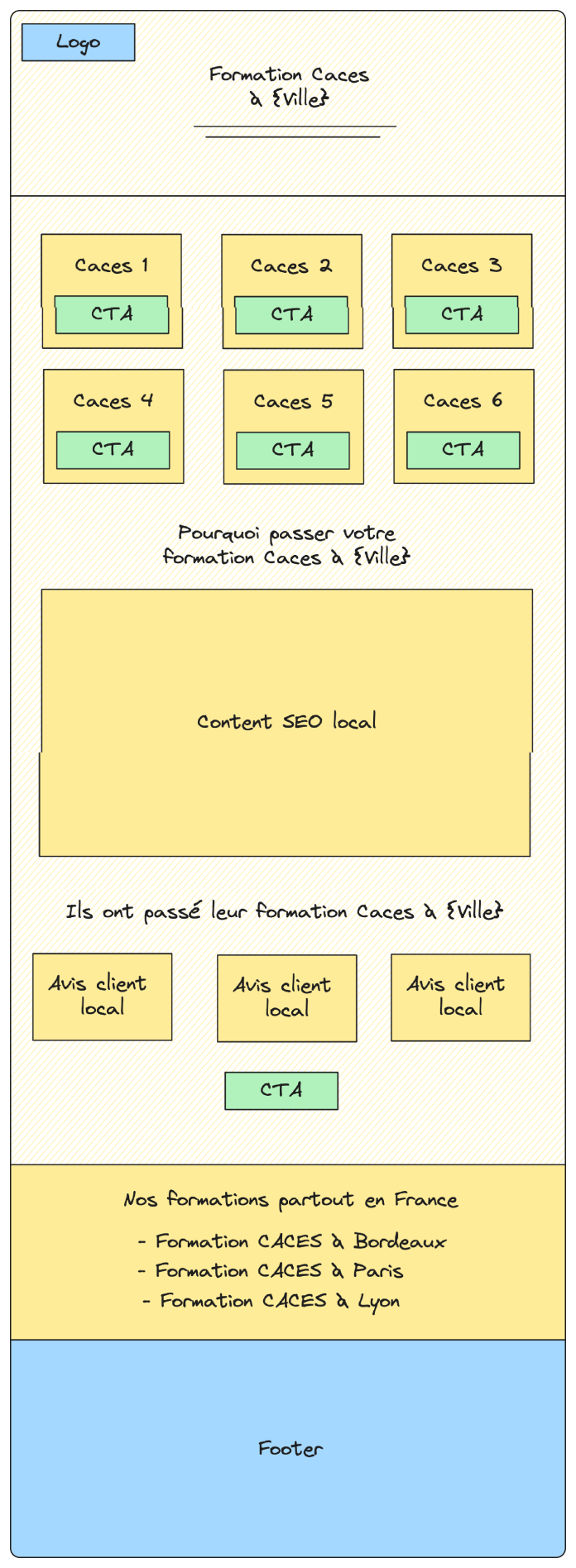
All that’s left is to create your page template with the City CMS Template page (I’m sharing a template wireframe below)
The URL would be: domain-name[.]fr/caces-r489/city, with domain-name[.]fr/caces-r489 as your generic product page
Simple as that.
2. Display local customer reviews
- Create a dedicated CMS collection that combines with your City CMS collection.
- Add the customer reviews collection to the page and filter by City = Current City
Optimized page template

Case 2 (multiple products)

You have a catalog of products and services, and you want to rank locally for each one.
Business examples : Equipment rental, freelance marketplace
Keyword examples: Boom lift rental + City, Excavator rental + City, English tutor + City, Math tutor + City
1. CMS architecture
Let’s take the example of a CACES training center offering 8 different training programs, with centers all over France.
Goal : Rank for the keywords “CACES training + {City}” in every city where it operates
How do you do this in Webflow ?
You’ll need to create several CMS collections:
- Local page CMS Collection (collection URL = formation-caces)
- Product CMS Collection (Caces R489, Caces R486, CACES R485…)
- City CMS Collection (Paris, Bordeaux, Lyon…)
- Local customer reviews CMS Collection
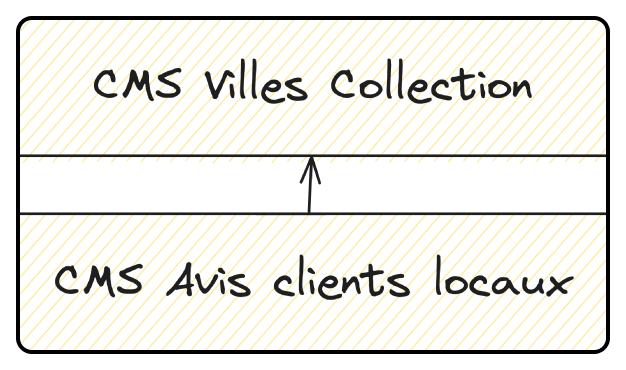
Then you need to combine:
- The Product CMS Collection and the City CMS Collection in the Local Pages CMS Collection
- The City CMS Collection in the Local Customer Reviews CMS Collection

The URL would be: http://domain-name[.]fr/caces-local/product-city, with domain-name[.]fr/caces-local as your hub page.
From there, you can display your full product catalog by city and even add “cities” and “products” filters.
Example : Tracktor local pages catalog

Your database architecture lets you do a lot of things!
To add local customer reviews, you can follow the same process as in case 1! 👆
Optimized page template
Don’t forget to optimize your metadata
Add 2 “Plain text” fields to your CMS collection that will serve as the page template:
- Title tag
- Meta description tag
Then add them as variables in your collection template page (see screenshot)
- City CMS Collection for case 1
- Local Pages CMS Collection for case 2

To wrap up, here’s an example of a company where we used this strategy:
- Tracktor (equipment rental marketplace for construction)
More than 2k qualified sessions per month

Good to know
Heading
Lorem ipsum dolor sit amet, consectetur adipiscing elit. Suspendisse varius enim in eros elementum tristique. Duis cursus, mi quis viverra ornare, eros dolor interdum nulla, ut commodo diam libero vitae erat. Aenean faucibus nibh et justo cursus id rutrum lorem imperdiet. Nunc ut sem vitae risus tristique posuere.











Lorem ipsum
Lorem ipsum dolor sit amet, consectetur adipiscing elit, sed do eiusmod tempor incididunt ut labore et dolore magna aliqua. Ut enim ad minim veniam, quis nostrud exercitation ullamco laboris nisi ut aliquip ex ea commodo consequat. Duis aute irure dolor in reprehenderit in voluptate velit esse cillum dolore eu fugiat nulla pariatur.





