


Customize the design of slider dots in Webflow
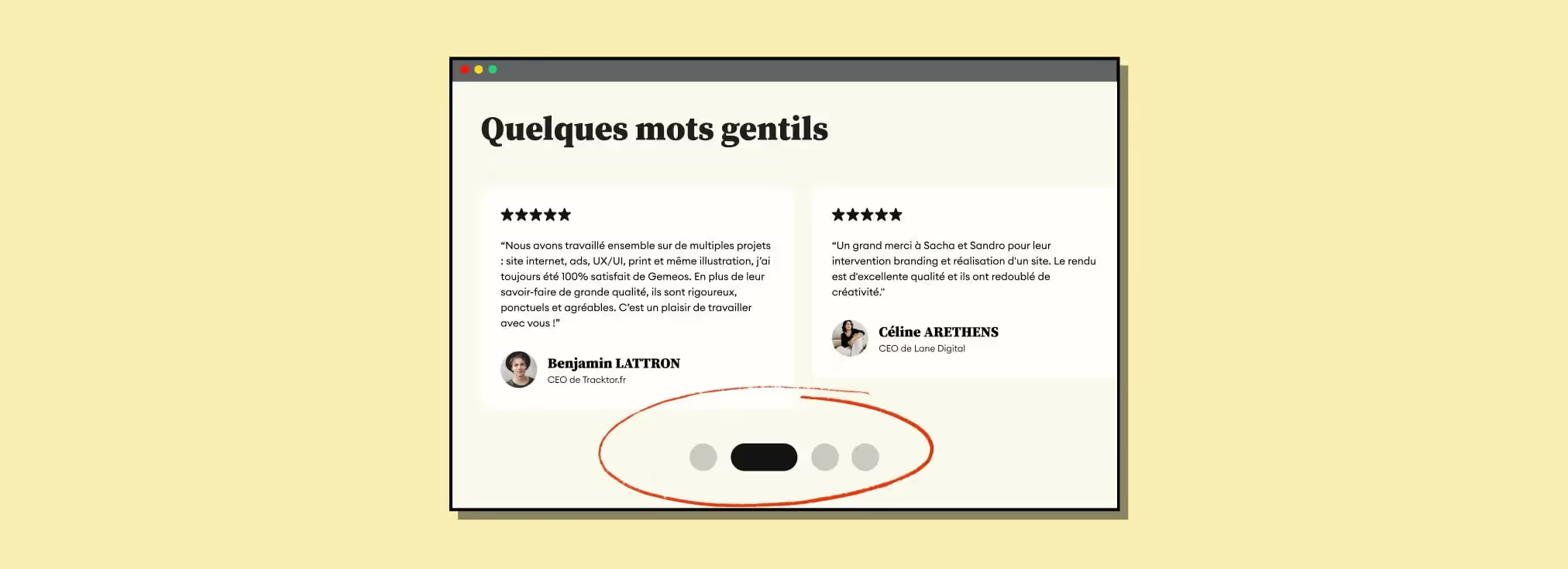
1. Add an embed element and paste in this code
| CSS property | Selector | Description |
|---|---|---|
| background | w-slider-dot | Inactive dot color |
| background | w-slider-dot.w-active | Active dot color |
| width / height | w-slider-dot | Dot size |
| border-radius | w-slider-dot | Shape (24px = round, 0 = square) |
Tip from Gemeos Webflow agency: adding your code in an embed element instead of in your page settings lets you see the result directly in Webflow without having to publish your site. Super handy for iterating on your CSS design without wasting time. Visible only for HTML/CSS code.
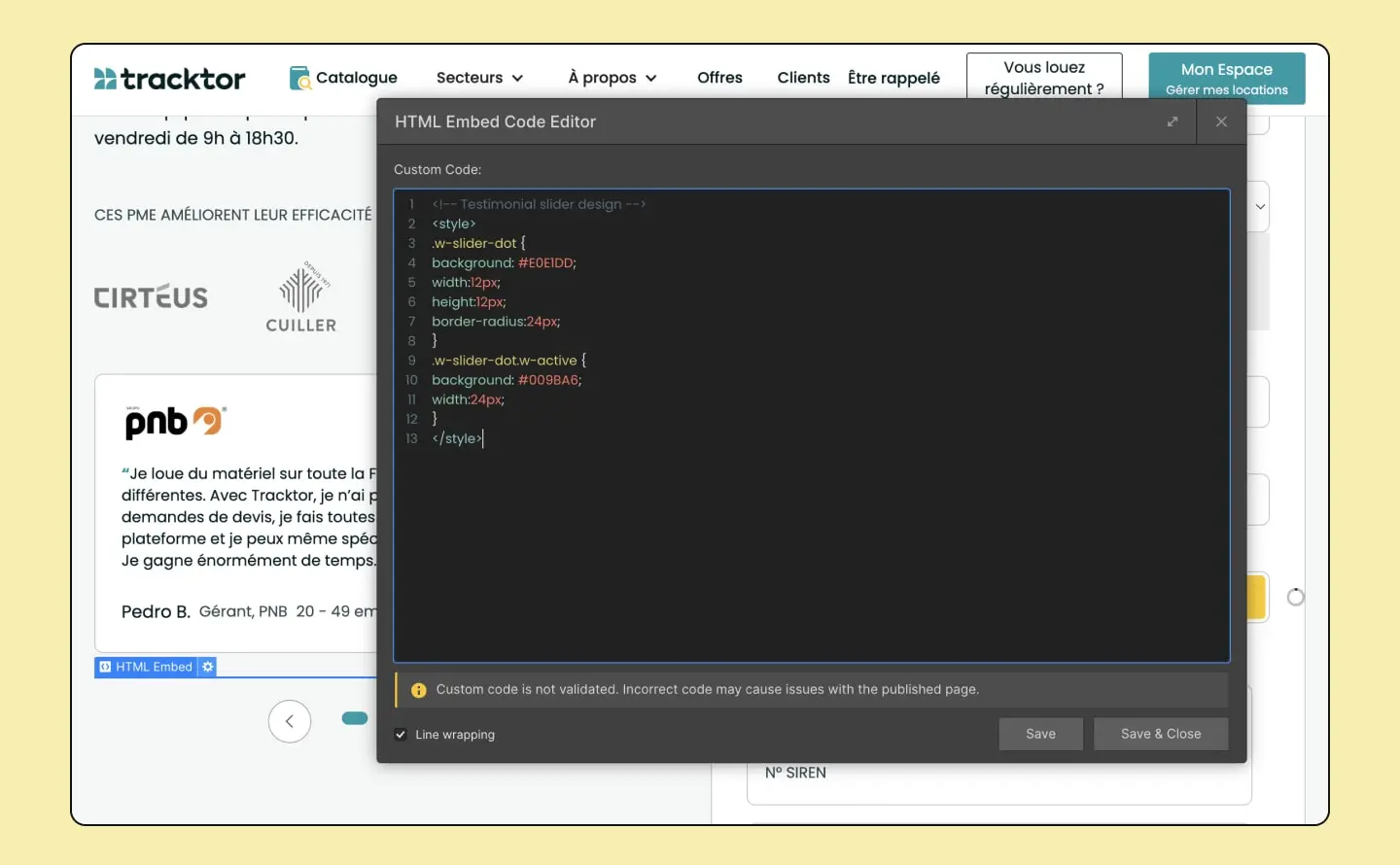
2. Add the style you want
Default design
Color: Enter your desired color instead of the hex code #E0E1DD
Design: Set the desired width, height, and radius by changing the width, height, and border-radius.

Active design
Same idea as the default state, but for the selected active state by adding "w-active" to the class ".w-slider-dot".

3. Publish, and you're done

Bonus Tips
To optimize the design of your slider dots on mobile, you can use a media query to target mobile-sized screens.
Add the code below to your <style> tag
Good to know
Heading
Lorem ipsum dolor sit amet, consectetur adipiscing elit. Suspendisse varius enim in eros elementum tristique. Duis cursus, mi quis viverra ornare, eros dolor interdum nulla, ut commodo diam libero vitae erat. Aenean faucibus nibh et justo cursus id rutrum lorem imperdiet. Nunc ut sem vitae risus tristique posuere.













Lorem ipsum
Lorem ipsum dolor sit amet, consectetur adipiscing elit, sed do eiusmod tempor incididunt ut labore et dolore magna aliqua. Ut enim ad minim veniam, quis nostrud exercitation ullamco laboris nisi ut aliquip ex ea commodo consequat. Duis aute irure dolor in reprehenderit in voluptate velit esse cillum dolore eu fugiat nulla pariatur.





