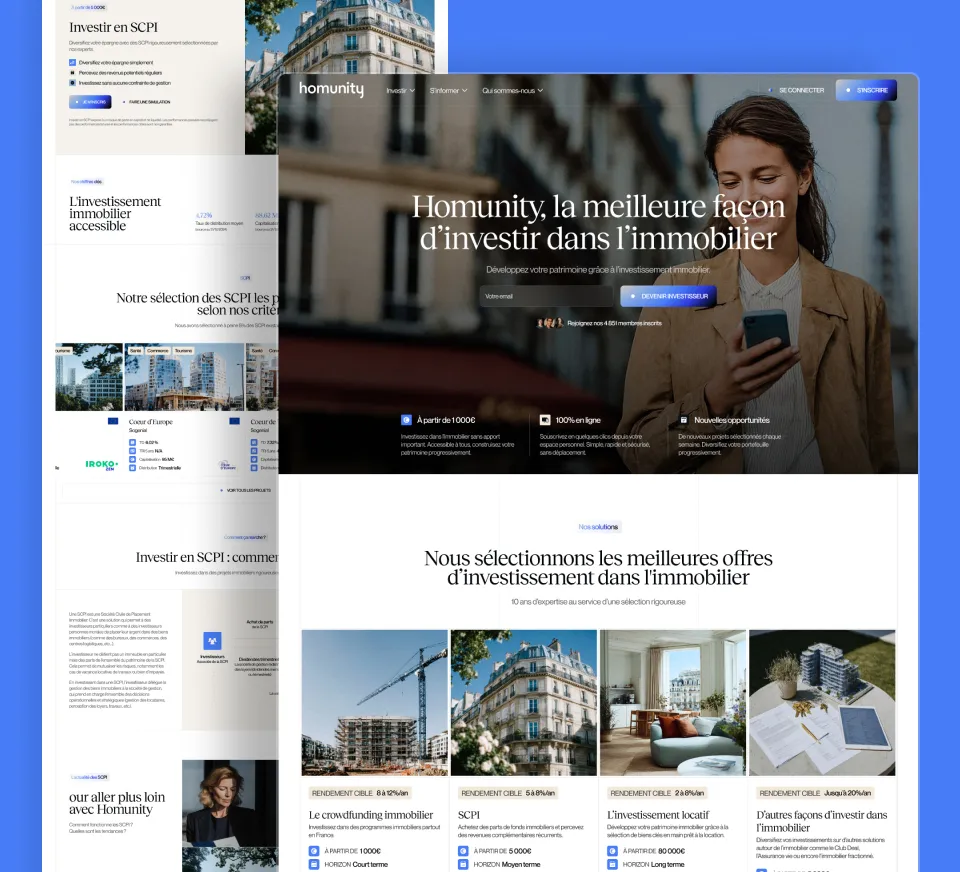
Learn how to create a sticky navbar that changes style on scroll in Webflow with a lightweight JavaScript script.
In this tutorial, Sandro, cofounder of the Gemeos Webflow agency, shows you how to create a sticky navbar that changes style on scroll in Webflow, without any external library.
Example
Scroll in the area to see the navbar change
Gemeos Services Case studies Contact
↓ Scroll here
Welcome to Gemeos. We build high-performance Webflow websites for startups and scale-ups that want a digital presence worthy of their ambitions.
Our approach combines design, Webflow development, and SEO strategy for measurable results. Every project is built to convert.
Keep scrolling to see the navbar change appearance after 50px of scrolling.
| Approach | Method | Benefit |
|---|
| Native Webflow CSS | Position: sticky + class on scroll | No JS needed if the style stays fixed |
| JS + CSS class (this tutorial) | Script that adds a class on scroll | Dynamic style changes |
| Webflow Interactions | Scroll animation on the navbar | Visual only in the Designer |
1. Create your navbar and assign it a class
In the Designer, select your Navbar. Give it the class navbar. Set its position to Fixed at the top of the page.
2. Create a "scrolled" state in your styles
In your global styles, create a navbar.scrolled variant with the properties you want: opaque background, drop shadow, reduced height. Example: background-color: #fff, box-shadow: 0 2px 8px rgba(0,0,0,0.1).
3. Add this script to the <body> of your page
Go to Page Settings > Before </body> tag and paste the following script.
const navbar = document.querySelector('.navbar');
window.addEventListener('scroll', function {
  if (window.scrollY > 50) {
    navbar.classList.add('scrolled');
  } else {
    navbar.classList.remove('scrolled');
  }
});
4. Publish and test
Publish your site and scroll: the scrolled class is added as soon as you hit 50px of scrolling. Adjust the 50 value to fit your design.
good to know
To avoid a flash on load on pages that are already scrolled (for example, when using the browser back button), add an immediate call to the scroll function on load: window.dispatchEvent(new Event('scroll')); after defining the listener.
Conclusion
Your navbar now changes style smoothly on scroll. Use cases:
- Transparent navbar on the hero that becomes opaque on scroll
- Reduce the navbar height to save space
- Change the logo color from light to dark