Loop an element continuously
Video
| Parameter | Recommended value | Description |
|---|---|---|
| Trigger | Scroll into view | The animation starts when it enters the viewport |
| Action 1 | Move 0 PX — 0s | Starting position |
| Action 2 | Move -2500 PX — 40s | Scroll to the left |
| Action 3 | Move 0 PX — 0s | Return to the starting position to loop |
| Loop | Enabled | Infinite repetition |
In this episode, Sacha, cofounder of the Gemeos Webflow agency, shows you how to make an element scroll in a loop.
1. Select the element that will trigger the animation
- Select the element you want to animate (e.g. link_wrapper_contact)
- Click in the Interactions panel and choose the “Scroll into view” trigger

2. Create the animation
1. Select the “Move” animation
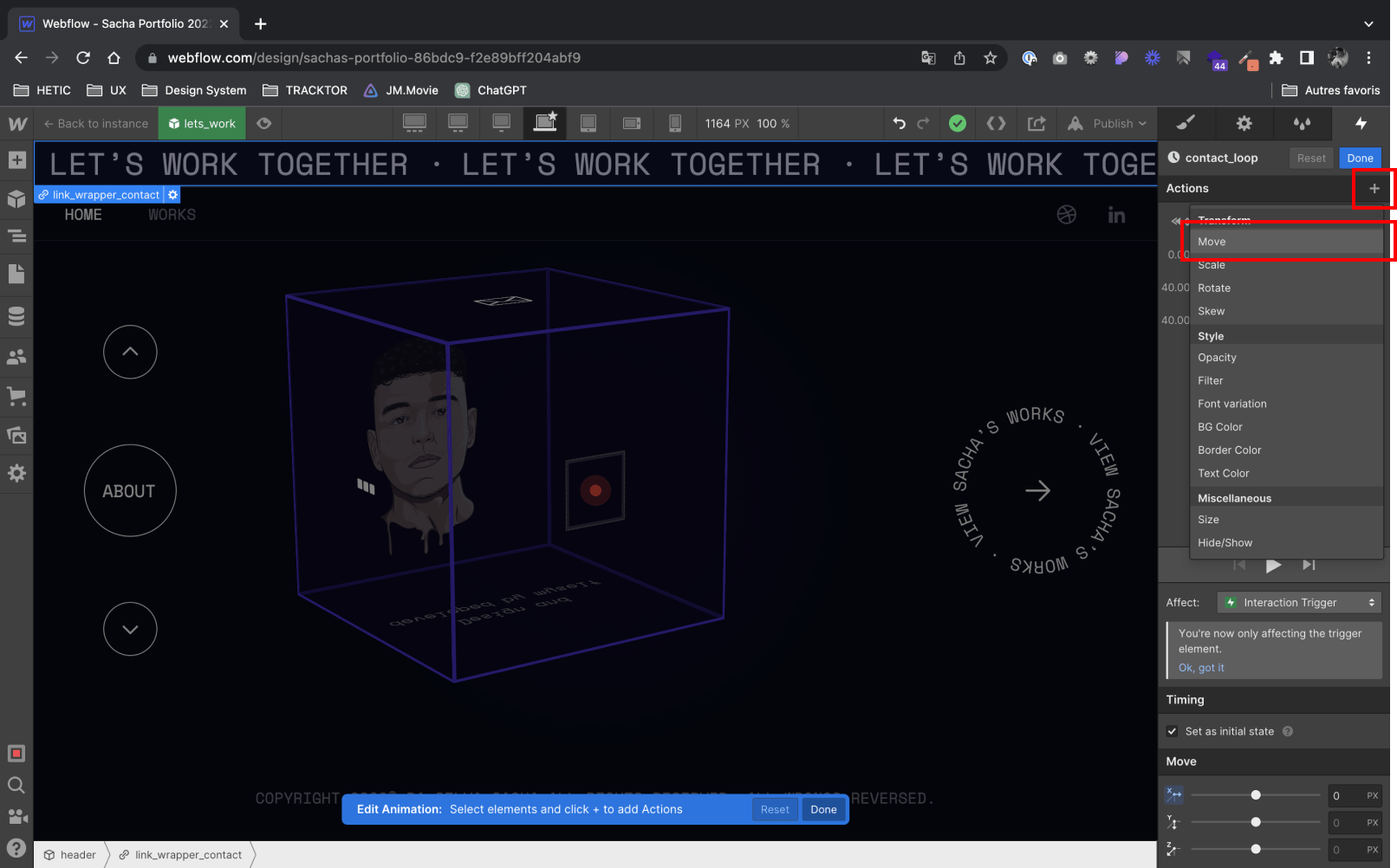
2. Set a default position for your element: 0 PX

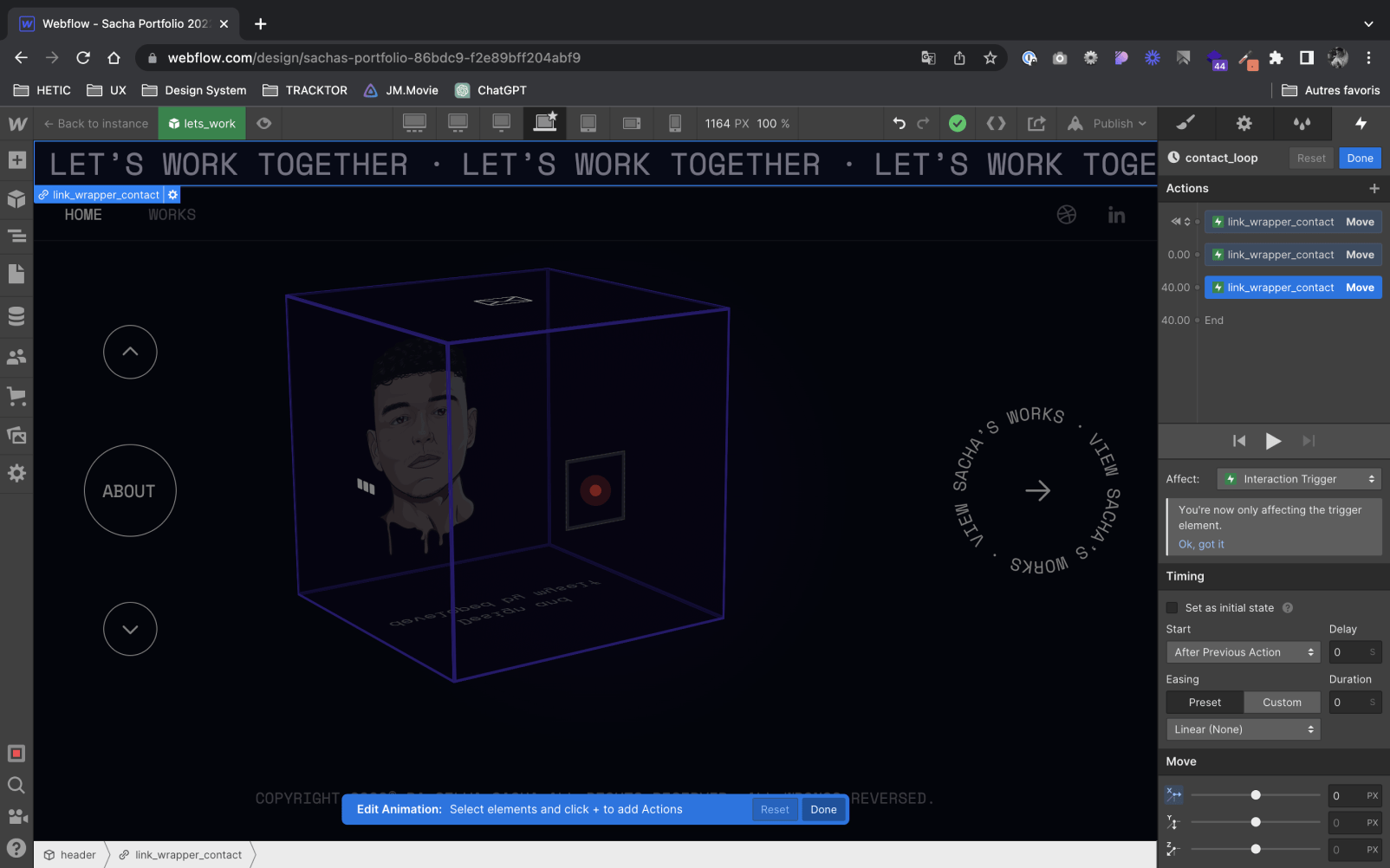
3. Add a transition to change the element’s position and set the animation duration: -2500 PX in 40 sec (for example)

4. Add a transition so the element returns to its default position once scrolling is complete: 0 PX and 0s Duration
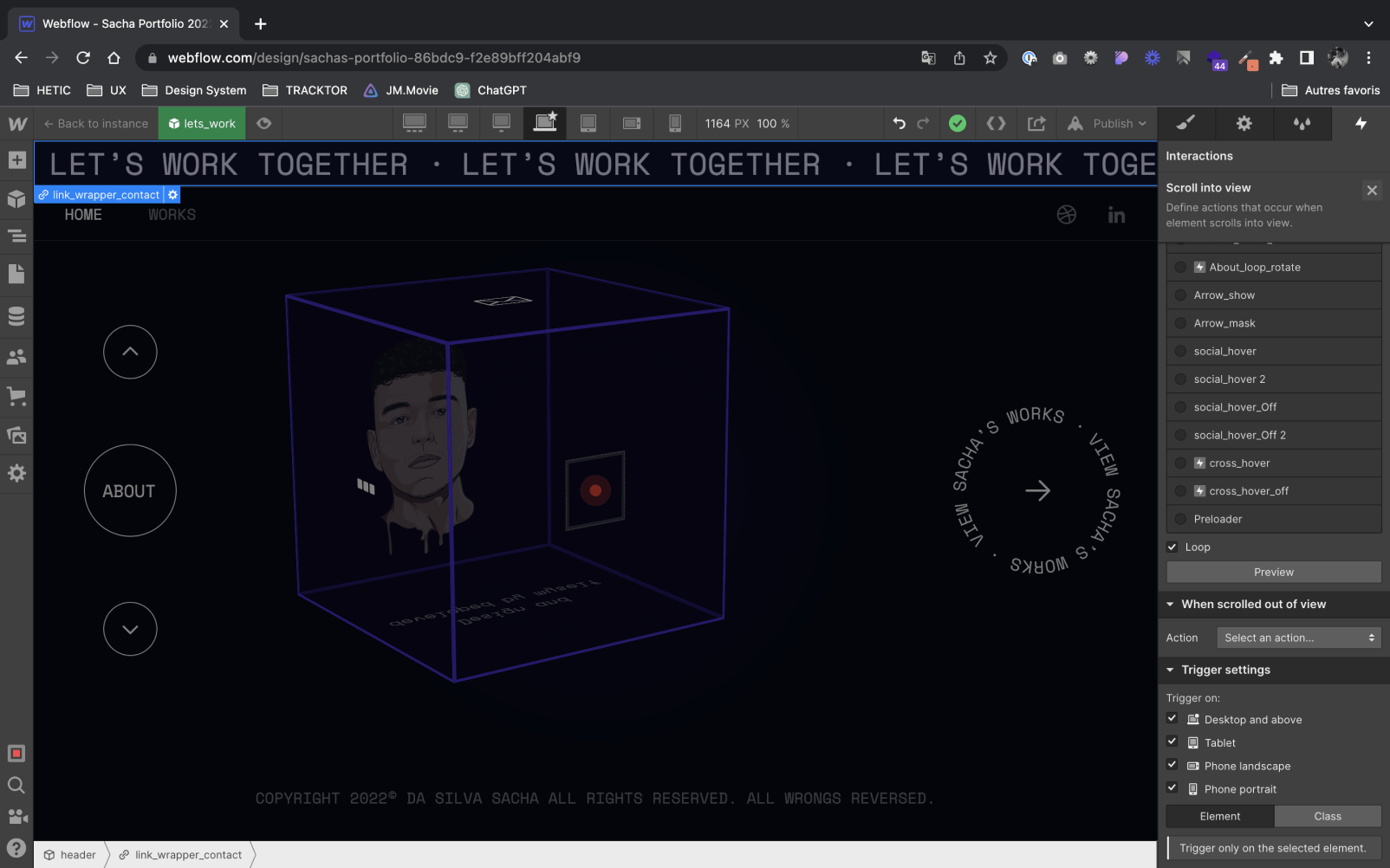
3. Apply the Loop setting to the animation
Check “Loop” in the trigger settings so the animation repeats continuously
Good to know
Heading
Lorem ipsum dolor sit amet, consectetur adipiscing elit. Suspendisse varius enim in eros elementum tristique. Duis cursus, mi quis viverra ornare, eros dolor interdum nulla, ut commodo diam libero vitae erat. Aenean faucibus nibh et justo cursus id rutrum lorem imperdiet. Nunc ut sem vitae risus tristique posuere.












Lorem ipsum
Lorem ipsum dolor sit amet, consectetur adipiscing elit, sed do eiusmod tempor incididunt ut labore et dolore magna aliqua. Ut enim ad minim veniam, quis nostrud exercitation ullamco laboris nisi ut aliquip ex ea commodo consequat. Duis aute irure dolor in reprehenderit in voluptate velit esse cillum dolore eu fugiat nulla pariatur.